
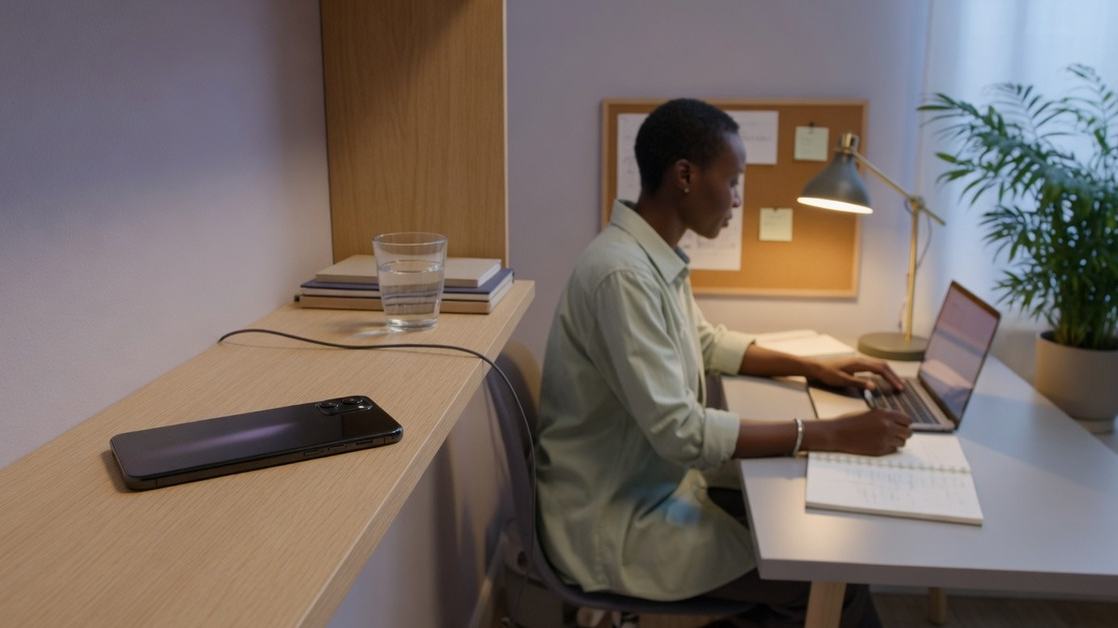
Quiet hours give you the best of both worlds at night: the phone holds every notification you can deal with tomorrow, and still rings for the call you genuinely need tonight. The win comes from deciding that boundary once, in advance, instead of judging each buzz at 1 a.m.
Start with the list that makes the whole setup trustworthy — the people and services that must reach you. A family member, an on-call number, a care service. Write those down before you change a single setting, and the quiet you build will be quiet you can actually relax into.
Set the schedule on your phone
Both major platforms have this built in, and the setup takes a few minutes:
- iPhone: open Settings, then Focus, then Do Not Disturb. Under Allow Notifications, add the people and apps you want to hear from while Do Not Disturb is on, then use Set a Schedule to choose the times it turns on and off each day.
- Android: open Settings, then Modes. Choose Do Not Disturb, or tap Bedtime and set it up, then edit the Notification filters and the schedule that turns the mode on automatically. Settings can vary by phone, so the exact wording on your screen may differ slightly.
Set hours that match your own sleep, shift work included. As an illustration of the shape, you might hold routine alerts from 9:30 p.m. until 6:30 a.m. with one chosen contact allowed through — an example configuration rather than a sleep prescription. Revisit it whenever weekends or night shifts call for something different; the schedule is easy to edit, which is part of what makes it worth setting up.
Test it before relying on it
A five-minute test while you are awake is what turns a setting into confidence. Turn the mode on and run through these checks:
- Ask an allowed contact to call, and confirm it comes through.
- Trigger an ordinary app notification and watch what happens to it.
- Confirm your morning alarm still sounds with your particular settings.
- On Android, look at Allow repeat callers under the mode's Notification filters. Turning it on lets a call through when the same person calls twice within 15 minutes, so you know whether that path is open before you rely on it.
- On Android, check the lock screen, not just the sound. Under the mode's More settings, Display settings, Display options for filtered notifications, you can choose what a held notification is allowed to show.
Treat anything medical or safety-related as its own step rather than an assumption. If you depend on alerts from a care provider, a monitor, or an on-call service, confirm with that provider and with your device's own guidance that those alerts will reach you the way you need before you lean on quiet hours overnight. On Android, Google notes that critical notifications still show — system security notifications, for example, cannot be blocked — but the specific alerts you care about deserve a direct check.
Then choose where the phone spends the night. Across the room is often enough; outside the bedroom suits people who have another alarm and can still hear essential calls. If you need the phone close for care or work, the notification controls do the job on their own, no distance required.
Keep the goal modest and useful
There is a real reason to want fewer interruptions. In Kushlev and colleagues' 2016 study, participants reported fewer inattention and hyperactivity symptoms during a week with alerts off and phones kept away than during a week with alerts on and phones within reach. That study looked at attention symptoms rather than sleep, so treat quiet hours as a way to control which alerts reach you — a lever you fully own.
After a few nights, spend two minutes reviewing the exceptions. If an important call did not get through, fix that one rule. If a shopping app is still lighting the screen, remove its permission. Once the setup behaves the way you intended, it keeps working every night without further thought: the package update simply waits until breakfast, and no decision lands at midnight.
For interruptions during the working day, the single-tasking guide covers a shorter block with an urgent-contact route. And for the bigger picture on what sleep does for attention, see sleep and a workable day.